
Phase Two: How to Connect and Manage Existing Minor Accounts
Phase Two: How to Connect and Manage Existing Minor Accounts
Overview
Managing multiple minor accounts can be time consuming. Phase two of the minor account updates introduces a simple, secure way for adults to connect existing minor accounts to their own parent or guardian account. Once connected, the adult can manage registrations, waivers, privacy settings, and notifications—without needing the minor's credentials every time. The process is straightforward and gives parents a central place to oversee all minor activity on minerspickleball.com.
Quick summary of what you can do
- - Link an existing minor account to a parent or guardian account.
- - Approve and accept waivers and media releases on behalf of the minor.
- - Impersonate the minor account to register for events, edit registrations, and update profile details.
- - Control privacy and information protection settings and enable notifications for key account events.
Step-by-step: Connect a minor account to a parent account
The following steps walk through connecting an already created minor account to a parent or guardian. The process begins while logged into the minor account and finishes in the parent account email.
1. Log in to the minor account and open profile
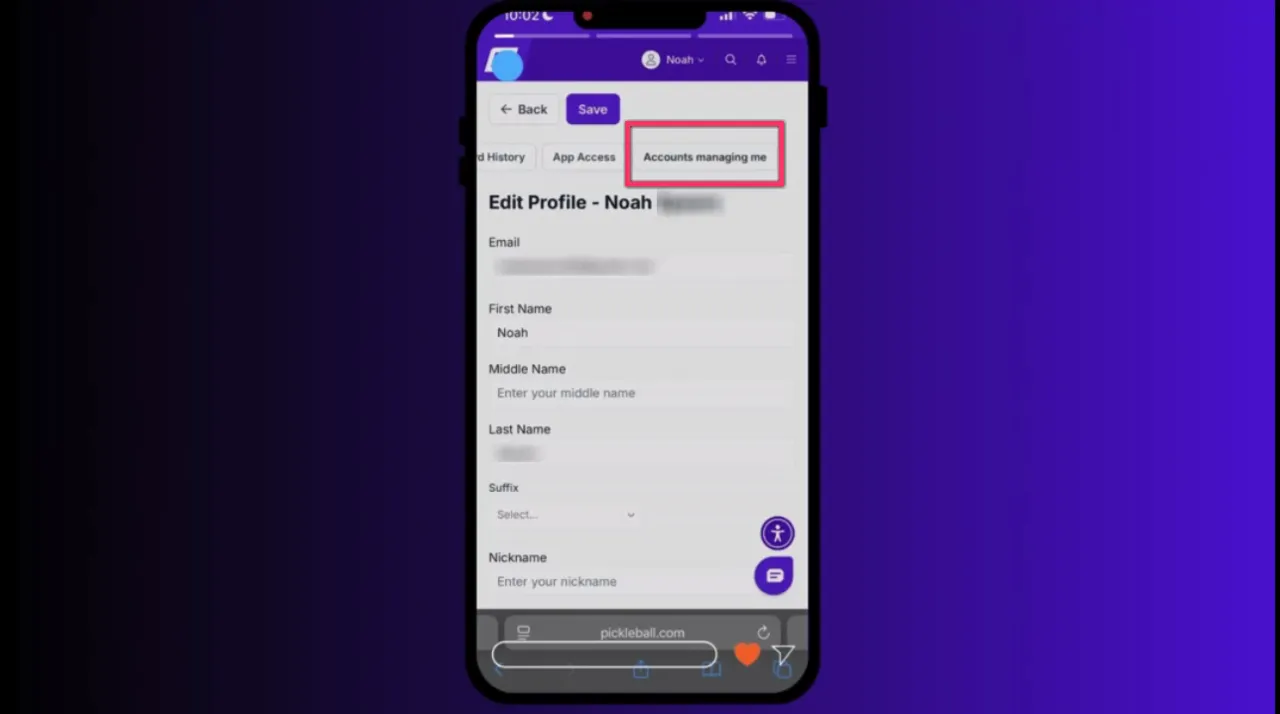
Sign in using the minor's current username and password. Click the minor's name in the upper right corner and go to My Profile. From there, select Edit Profile. You'll see a horizontal menu near the top of the profile page. Hold your finger over the menu and slide left to reach the end of the options where Accounts Managing Me appears.
2. Add the parent or guardian
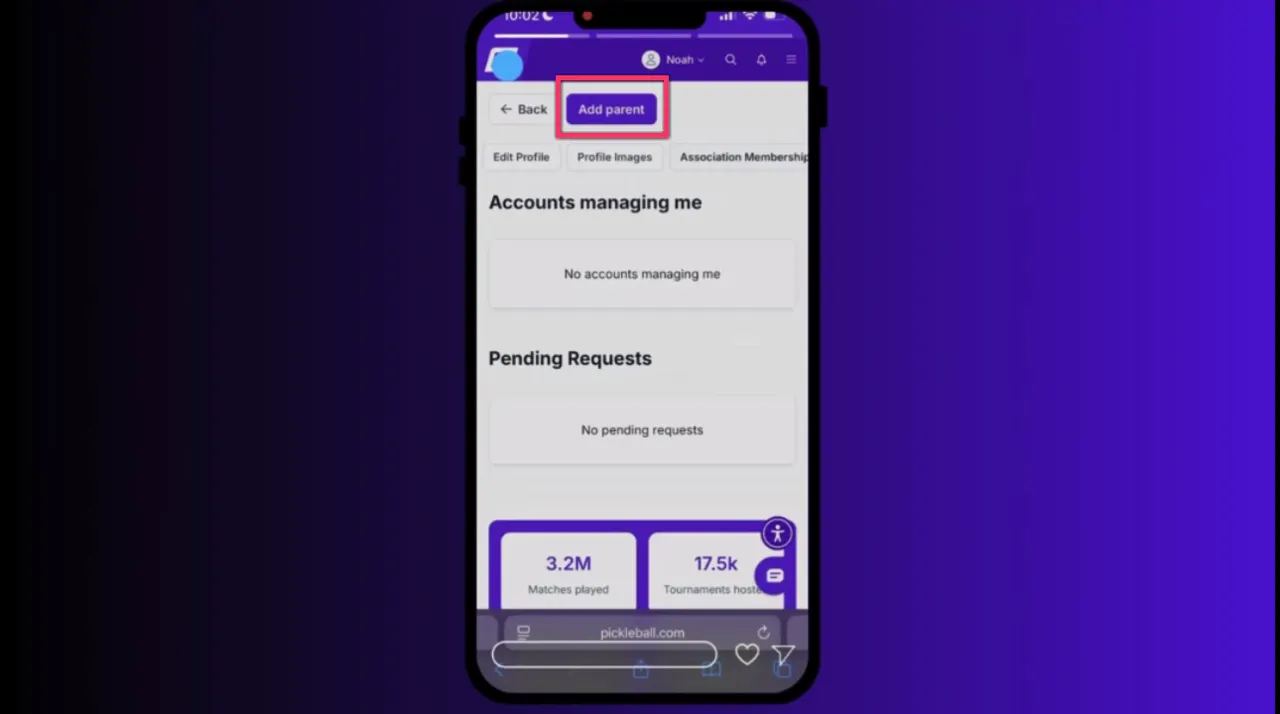
At the top of the Accounts Managing Me screen, tap Add Parent. In the search field, enter the parent or guardian's first and last name and click Search. When you find the correct person, click Select. Confirm by clicking Yes, Send to trigger an email invitation to the parent or guardian.
3. Accept the request from the parent account
Sign out of the minor account and have the parent or guardian check their email. They will receive an invitation that a minor has requested them to be a manager. Important: ensure the parent is logged into their minerspickleball.com account before clicking the Review link in the email. If they are still signed into another account, the link may not work properly.
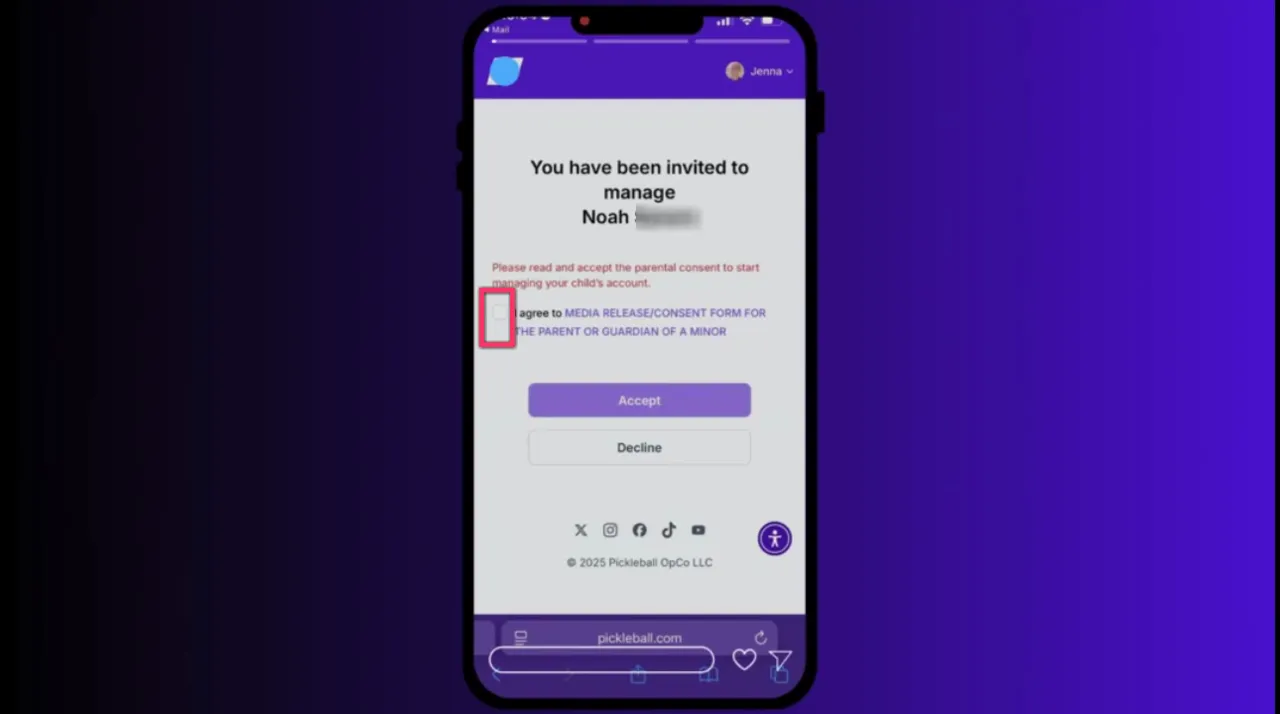
From the parent account, click Review. The parent will see the management invitation and must accept a few items to complete the connection. These include the media release and parental consent waiver. Read the terms, sign the parent or guardian last name at the bottom, check the confirmation boxes, and click Accept to finalize the management request. Click on the checkbox to accept the media release and parental consent waiver.
Managing connected minor accounts
Once accepted, the parent account displays a list of all minor accounts they manage. From this central dashboard you can:
- - Enable or disable notifications for each minor account.
- - Quickly view the minor's profile and account details.
- - Use the Impersonate feature to act as the minor when needed.
Impersonating a minor account
Impersonation allows the parent to perform actions as though they were signed in as the minor. This is useful for registering the minor for tournaments, editing existing registrations, or completing any task that requires being in the minor's account. To impersonate, click the Impersonate button next to the minor account you manage. While impersonating, the menu and profile options behave exactly like the minor sees them.
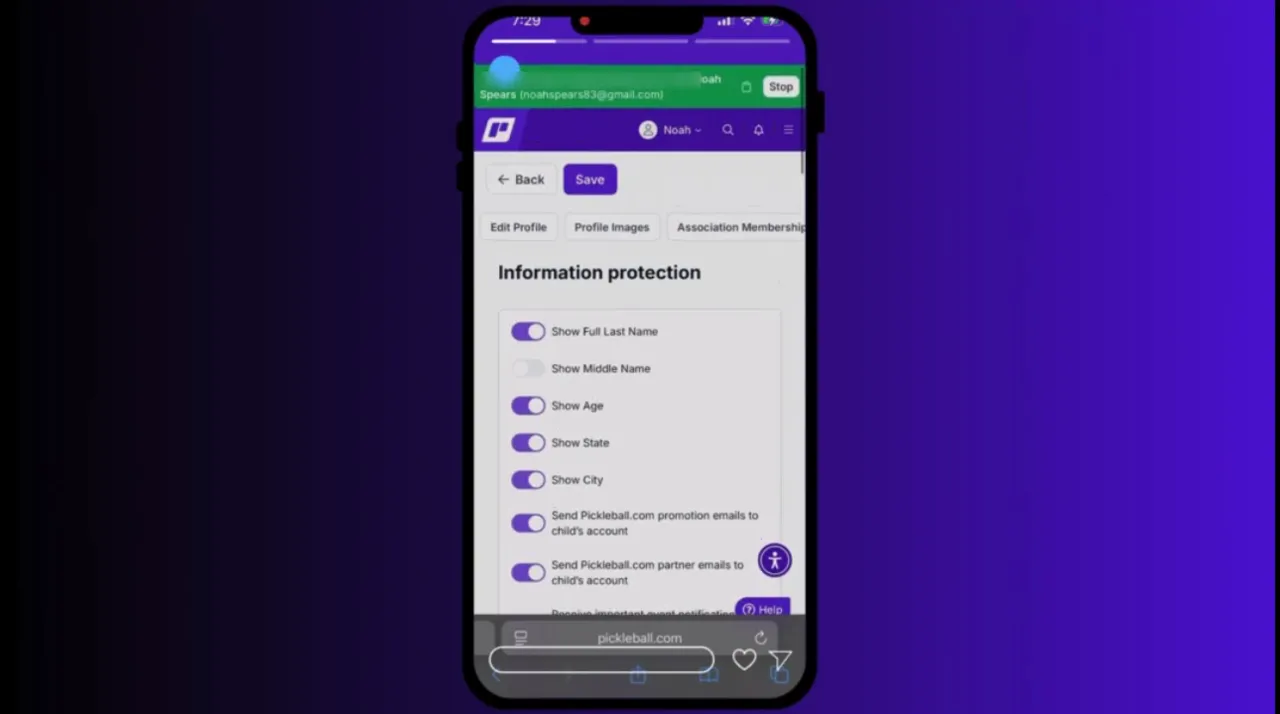
When you are finished acting as the minor, remove impersonation by clicking the Stop button at the top of the screen. This prevents accidental changes while ensuring parents can complete necessary tasks on the minor's behalf quickly and accurately.
Information protection and remaining waivers
While impersonating the minor, head to the minor's profile and slide left on the menu bar to access Information Protection. Here you will find any outstanding waivers and the various privacy toggles that control what information about the minor is shared.
Use the toggle switches to update preferences based on the minor's age and what the parent or guardian prefers. Typical settings include media release, contact visibility, and other privacy options relevant to event participation. Make sure to review any remaining waivers and sign them as necessary to avoid delays during event registration.
Troubleshooting tips and best practices
- - Make sure the correct account is active before clicking email links. If the parent is still logged into a different minerspickleball.com account, the acceptance link may fail.
- - Confirm names in the search when adding a parent. If multiple people share similar names, verify the email or profile details before sending the invitation.
- - Keep credentials secure. The parent should never share their login. Use impersonation instead of sharing the minor's password.
- - Check notifications for each minor to stay informed about registrations, waivers, and event updates.
- - Review privacy toggles periodically as the minor ages or as permissions change.
Security and consent considerations
Linking accounts requires explicit consent through the parental consent waiver and media release. These documents protect both the minor and the organization by clarifying permissions for media use and event participation. Always read the terms carefully before accepting on behalf of a minor and ensure the signed last name matches the parent or guardian's legal name on their account.
Final notes
This phase provides a convenient and secure workflow to centralize minor account management. By combining direct account linking, clear consent steps, impersonation for practical tasks, and privacy controls, parents and guardians gain efficient oversight while keeping minors' credentials private.
Need more help?
For a more detailed, step-by-step breakdown including screenshots, troubleshooting scenarios, and a complete walkthrough of the waiver screens, visit the help document for this article. The help document contains extended guidance to ensure successful setup and efficient ongoing management of all minor accounts. Also, be sure to check out Phase One: How to Create Minor Accounts to learn more on the process of creating a minor account to be linked.